

Facility records and follow-up
 CoComply™
Connect Facility Records to Corrective Actions
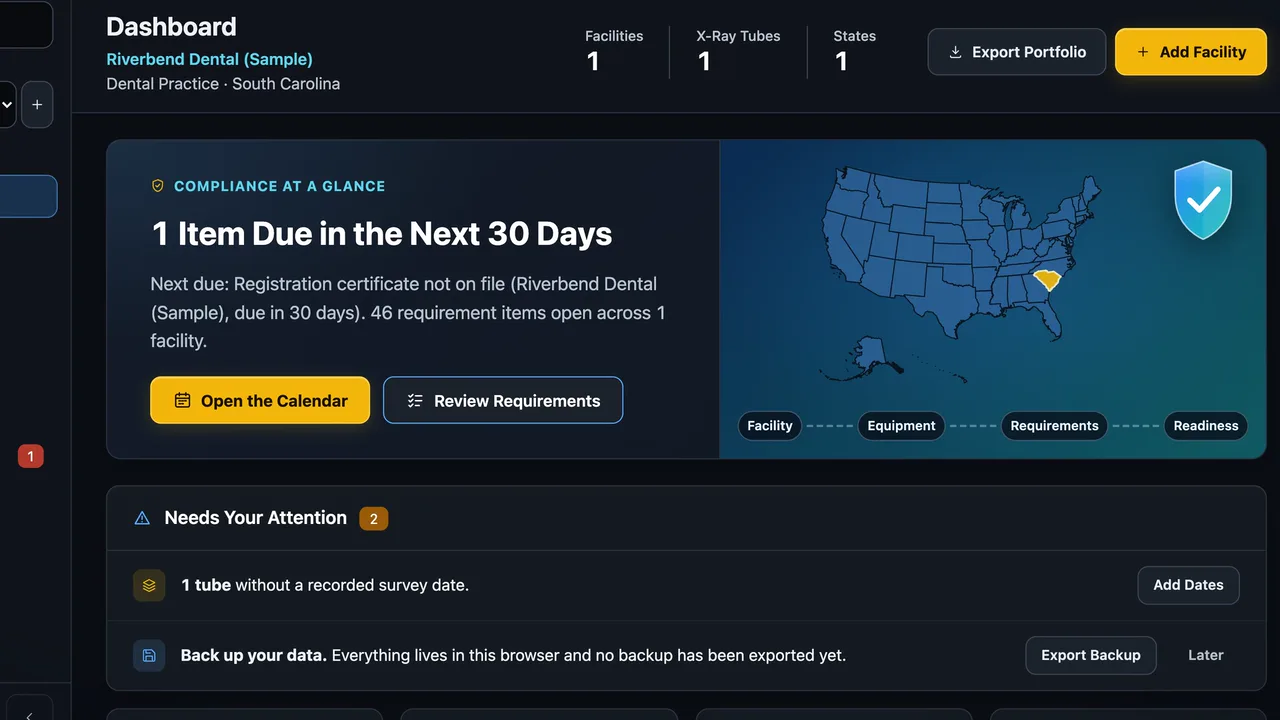
Build a facility and equipment inventory, link checklist items to supporting records, and track follow-up through verification. The example uses a fictional facility to demonstrate how these records fit together.
- Available Now
- No Account or Installation
- First load about 0.9 MB
- Version 4.2.0
CoComply at a Glance
- What It Does
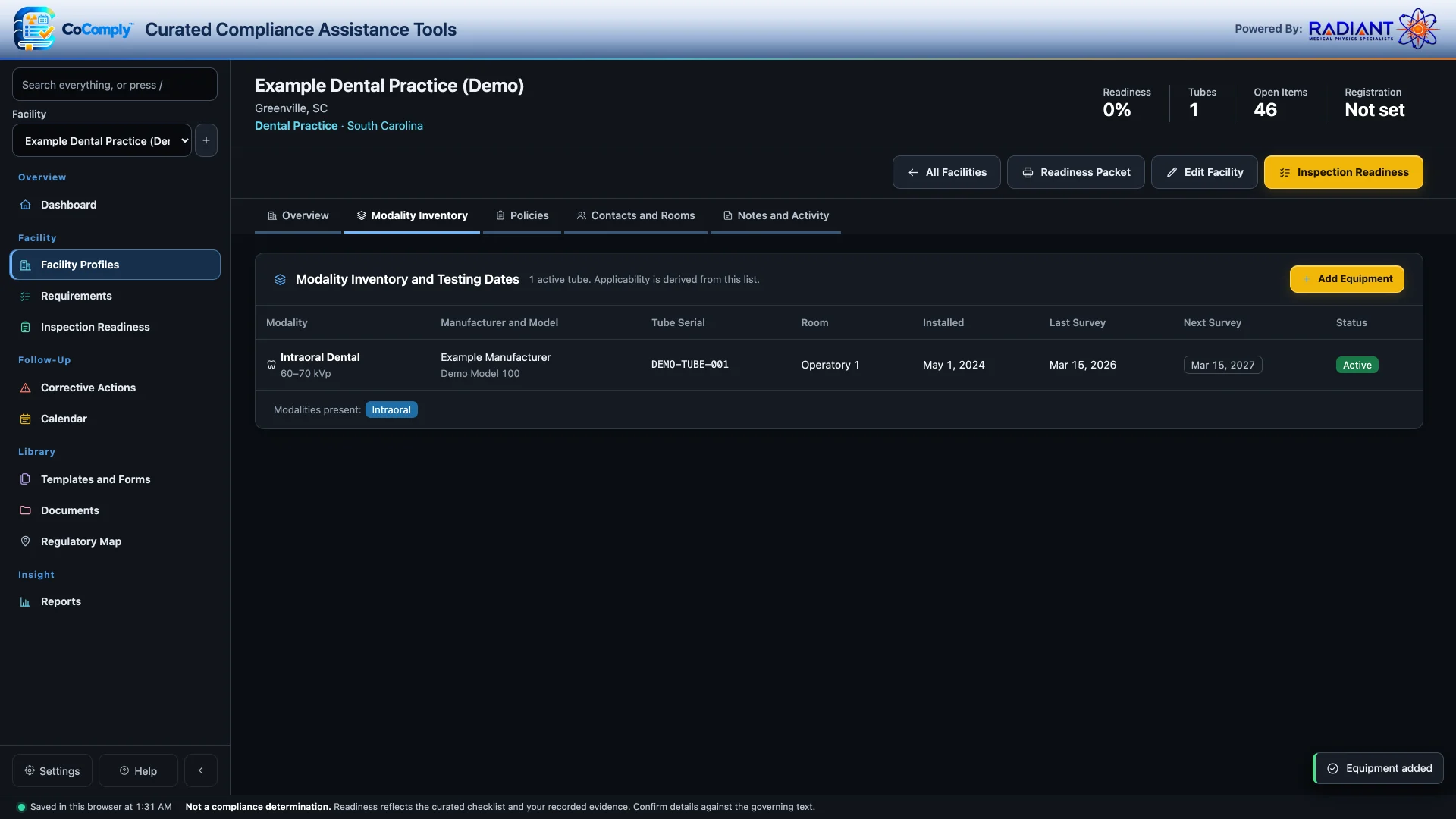
- An equipment record, a checklist item with supporting documentation, and a corrective action with a recorded next step.
- Who It Is For
- For facility managers and radiation safety teams exploring record organization and follow-up.
- Availability
- Available Now Runs in a current browser. Nothing to install.
- How to Launch
- Open the full-page program or run it on this page.
- 63Curated requirement records
- 30Built-in templates and forms
- 50Jurisdictions in the map
What You Can Do
- Create a fictional facility and equipment inventory.
- Organize checklist items and supporting records.
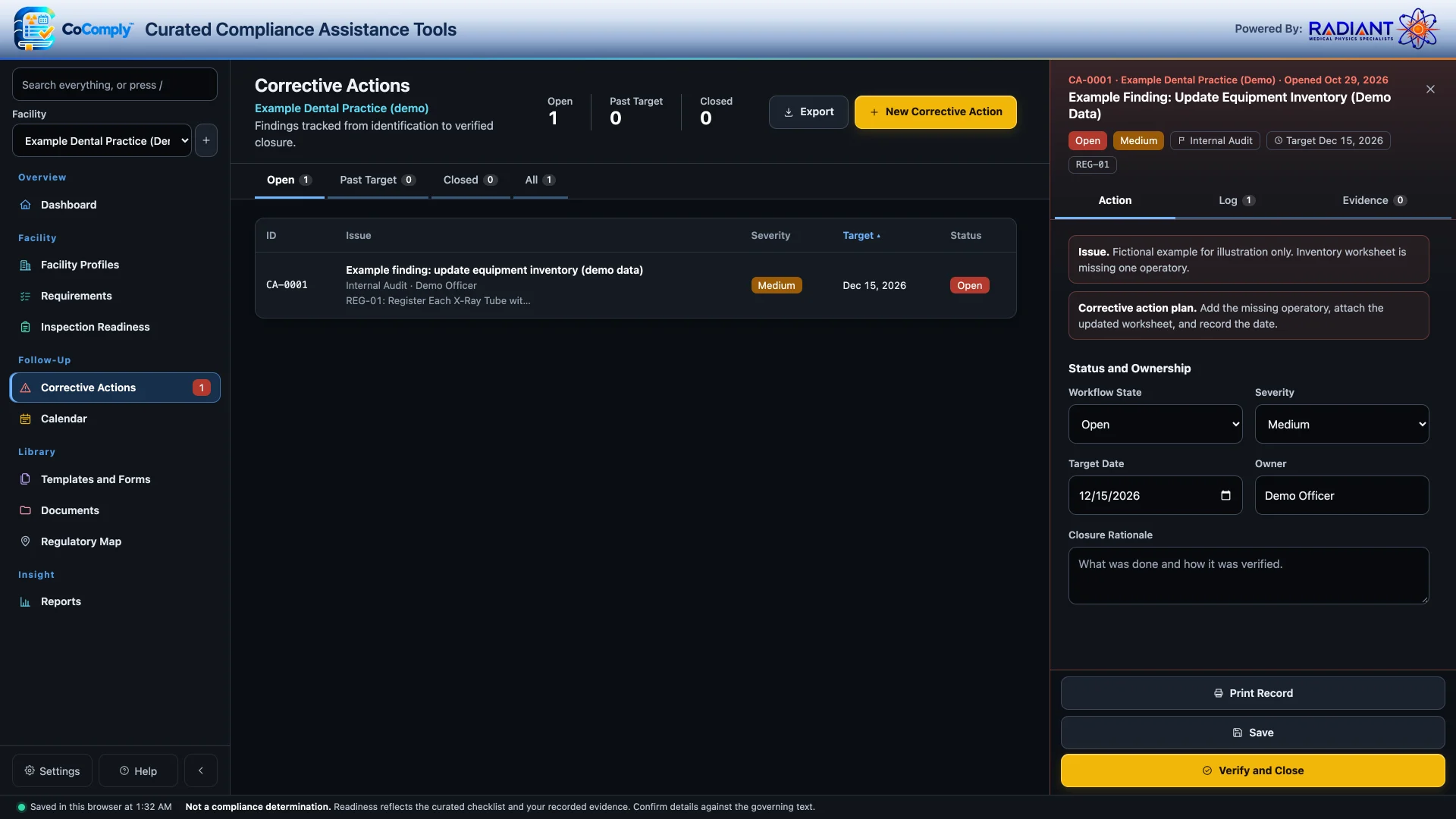
- Assign follow-up actions and record how they were resolved.
CoComply organizes work around the facility and its equipment. Use a fictional facility to see how a checklist, an equipment record, and a corrective action relate. The Regulatory Map and compliance guides can help you identify the official sources to consult as you build the example.
Where It Fits
For facility managers and radiation safety teams exploring record organization and follow-up.
Try This Example
Which record supports this item, and who is responsible for the next step?
- Create a fictional facility and add one example x-ray unit.
- Review the checklist and attach a note about the evidence you would gather.
- Create a fictional corrective action, then review how it appears in the task list.
What You Should See
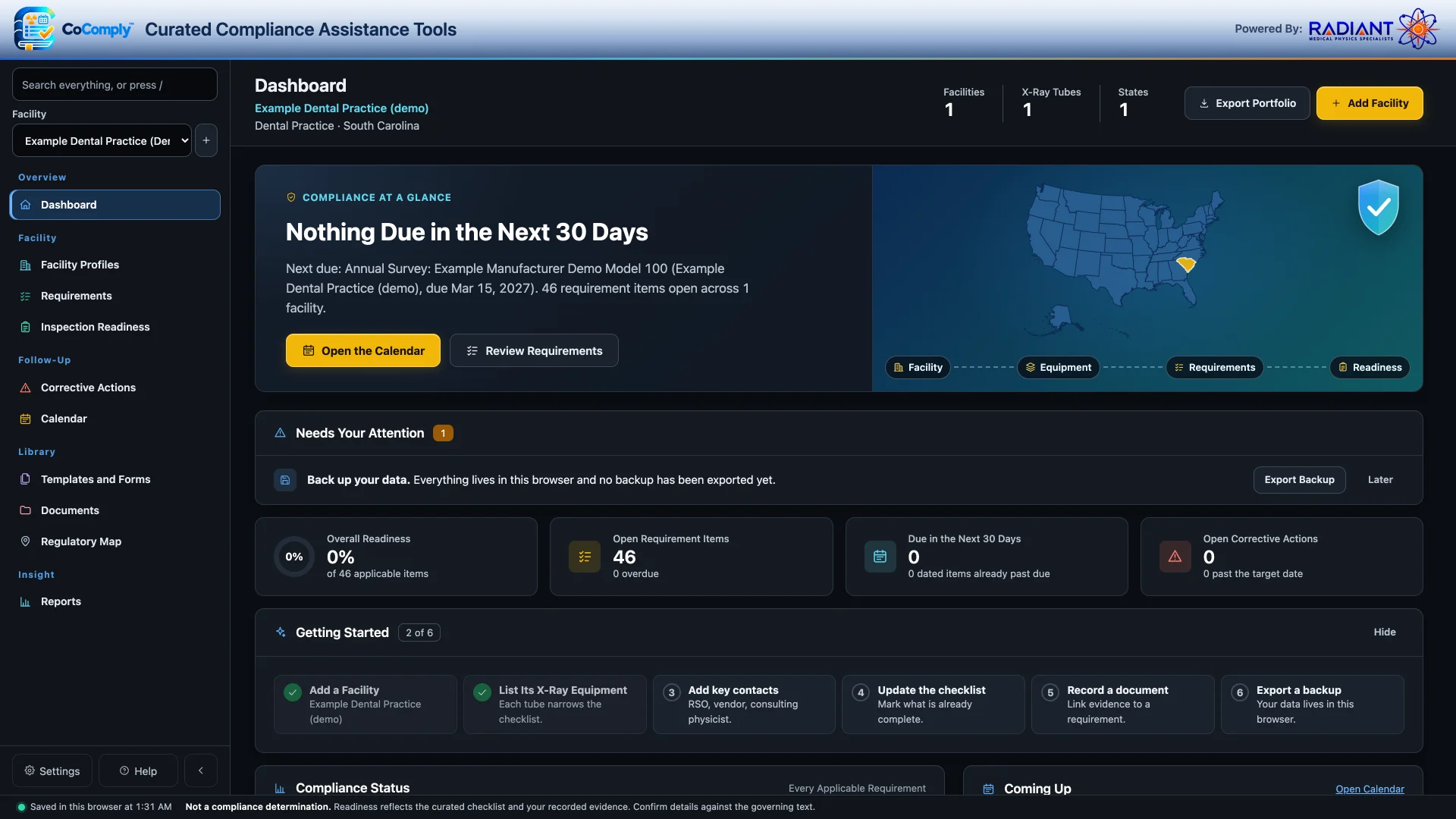
An equipment record, a checklist item with supporting documentation, and a corrective action with a recorded next step.
Try CoComply
Run the program on this page to follow the example, or open the full-page workspace for more room.
Your data stays in this browser. The facilities, equipment, and records you enter are kept in your browser’s local storage and are not sent to Radiant Medical Physics Specialists. Staff names and work details you enter stay in this browser, and anyone using this browser profile can open them. Do not enter patient information, health information, or government identifiers. What Is Stored.
Approximate first load 0.9 megabytes. Verify applicable requirements with the responsible agency and official publications. Use fictional information when you try the program.
Screenshots and Instructions
Select a screenshot to view it at full size.
Read the Full Walkthrough
- Add a Facility. Enter its name, type, state, and registration.
- List Its x-ray Equipment. Each tube you add narrows the requirement checklist.
- Work the Checklist. Track evidence and actions, then check Inspection Readiness.
- Use the Templates. Open Templates and Forms for logs, policies, and inspection-prep sheets.
- Follow Up. Record corrective actions with due dates, and review the calendar and reports.
Inside CoComply
What Is Inside
- 01
Facility Profiles
Add a facility and list its x-ray equipment. Each tube narrows the checklist to the records that apply.
- 02
Requirement Checklist
Work through curated requirement records with status, evidence, and source checks.
- 03
Corrective Actions and Calendar
Log issues with an owner and target date, and keep registrations, surveys, and inspections on one calendar.
- 04
Regulatory Map
Select any state, or its name, to see its x-ray agency, cited rule, and covered equipment, and read official regulation PDFs in a full-window reader. The same map is on the website.
Know the Limits
CoComply is not a compliance determination. Readiness reflects the curated checklist and the evidence you record. Verify applicable requirements with the responsible agency and official publications.
 ShieldScope
 QuantiRay
 EvaluRad
 ImageWare